The URL Widget allows you to display custom web content, including continuously playing videos from YouTube or other streaming services. This is perfect for showing promotional content, company information, or branded videos alongside your air quality data.
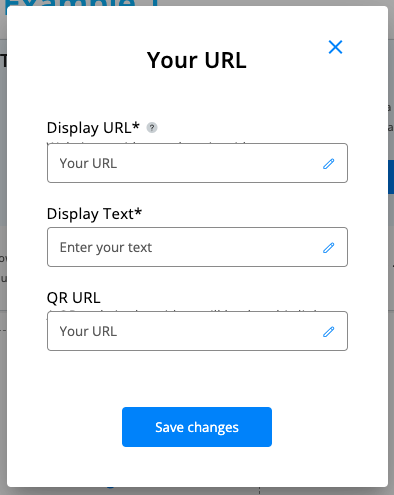
Setting Up Auto-Playing YouTube Videos
Step 1: Get the YouTube Embed Code
- Go to your YouTube video
- Click the Share button below the video
- Select Embed from the sharing options
- Copy the URL from the embed code (the part between the quotes after "src=")
Step 2: Modify the URL for Auto-Play
- Take your copied URL and paste it into a text editor
- Add this to the end of the URL:
?autoplay=1&loop=1&playlist=VIDEO_ID - Replace "VIDEO_ID" with the actual video ID from your URL
Example:
- Original URL:
https://www.youtube.com/embed/Y_RIXxcfTzk - Modified URL:
https://www.youtube.com/embed/Y_RIXxcfTzk?autoplay=1&loop=1&playlist=Y_RIXxcfTzk
Step 3: Add to Your Widget
- Copy your modified URL
- Paste it into the Display URL section when creating your widget
- Complete the rest of your widget settings
- Click Save Changes
Result Your video will now play continuously without user interaction, creating a seamless display for your public screens.
Tips
- Test your URL in a browser first to ensure it works correctly
- Use professional, appropriate content for public display areas
- Consider video length and content relevance to your audience
Was this article helpful?
That’s Great!
Thank you for your feedback
Sorry! We couldn't be helpful
Thank you for your feedback
Feedback sent
We appreciate your effort and will try to fix the article