The Devices tab in the Management section provides a complete overview of all your Aura Air devices in the currently selected location. This centralized view lets you monitor status, manage settings, and troubleshoot connectivity across your entire device network.
Important: When a device is not connected to WiFi, all displayed information (AQI readings, mode settings, etc.) reflects the last time the device was online, not current real-time data. However, the device continues to operate and purify the air - only the remote control functionality and data reporting are affected by the WiFi disconnection.
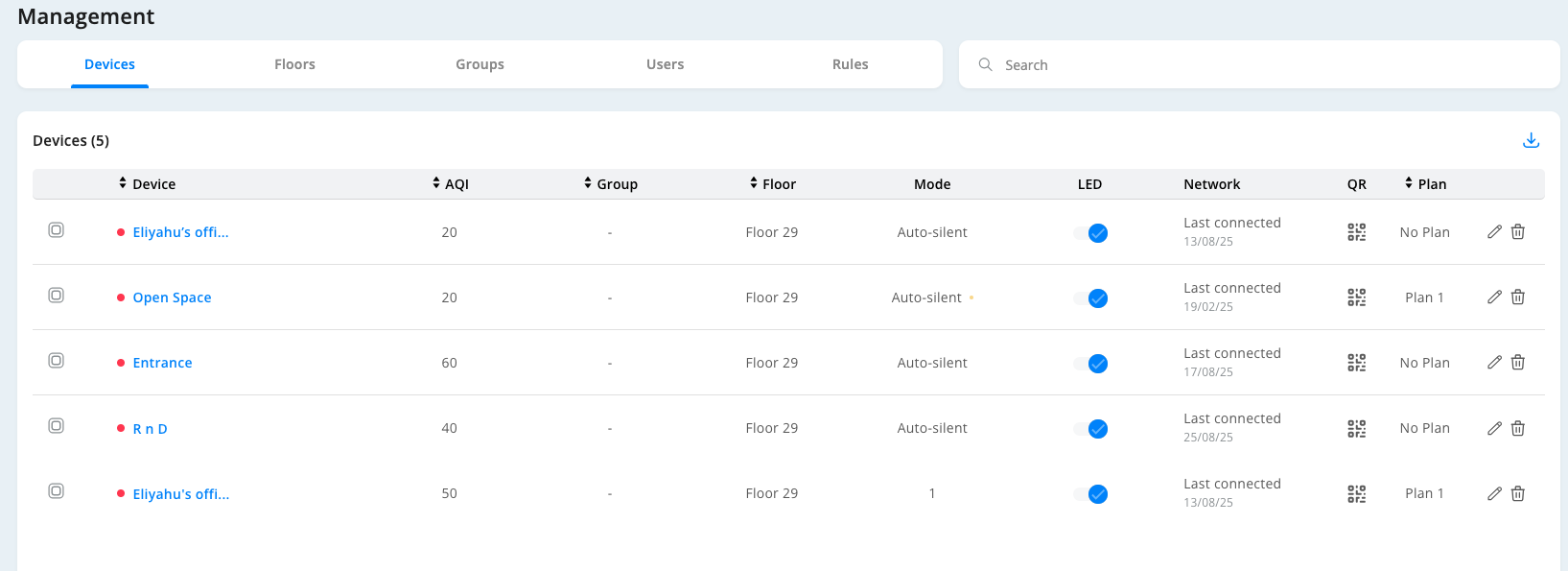
Device Table Columns
Device
- Shows the custom name and icon for each device
- Names can be customized to match room locations (e.g., "Conference Room," "Lobby," "Office 201")
- Click the name to edit device details
AQI
- Displays Air Quality Index reading from each device
- Note: If device is offline, shows the last recorded AQI reading, not current conditions
- Higher numbers indicate poorer air quality
Group
- Shows which device group each unit belongs to (if configured)
- Groups help organize devices by area, function, or management needs
- Displays "-" if no group is assigned
Floor
- Indicates the floor location for each device
- Essential for multi-story buildings and large facilities
- Helps with maintenance scheduling and technician dispatch
Mode
- Shows operating mode for each device
- Note: If device is offline, displays the last known mode setting
- Common modes include "Auto-silent," numbered settings (1, 2, 3), or custom modes
LED
- Visual status indicator showing device LED state
- Blue dot typically indicates normal operation
Network
- Critical for data accuracy: Shows connection status and last connection timestamp
- "Last connected" indicates when device was most recently online
- If this timestamp is old, all other data shown is outdated and not current
- Use this column to verify if device information is current or historical
QR
- Access to downloadable QR codes for each device
- QR codes allow mobile users to quickly connect and view device status
- Useful for sharing device access with visitors or team members
Plan
- Shows assigned service or maintenance plan for each device
- Options include "No Plan" or specific service plans
- Edit and delete buttons allow plan modifications
Data Accuracy Warning Devices not connected to WiFi will display their last known information, which may be hours or days old. Always check the "Last connected" timestamp in the Network column to verify if the displayed data is current. Remember: offline devices continue purifying air - you just can't control them remotely or see current data.
Quick Actions
- Edit device settings using the pencil icon
- Delete devices using the trash icon
- Download device-specific reports or QR codes
Troubleshooting Tips
- Devices showing old "Last connected" times may have WiFi issues
- Check that devices are powered on and within WiFi range
- Remember that offline devices show outdated information but continue operating
- Contact support if multiple devices show connectivity problems
This overview table gives you complete visibility into your device network's status, but always verify connection timestamps to ensure you're viewing current data.
Was this article helpful?
That’s Great!
Thank you for your feedback
Sorry! We couldn't be helpful
Thank you for your feedback
Feedback sent
We appreciate your effort and will try to fix the article