The Groups tab in the Management section allows you to organize devices into logical groups for efficient control and management. By grouping devices together, you can control multiple devices with a single click, saving time and effort while streamlining your device management workflow.
Benefits of Device Groups
- Control multiple devices simultaneously with one action
- Create custom groupings based on your specific needs
- Set up scheduled operations for entire groups
- Organize devices by rooms, functions, or usage patterns
- Apply rules and modes to multiple devices at once
Group Organization Options You can customize groups according to various criteria:
- By Room: Group all devices in conference rooms, lobbies, or office areas
- By Function: Group devices that serve similar purposes
- By Schedule: Group devices that need the same operating schedule
- By Usage Pattern: Group devices that are frequently controlled together

Creating a New Group
Click the "+ Add New" button to create a group. The group creation dialog includes:
Group Name
- Enter a descriptive name for your group in the text field
- Use clear, identifiable names like "Conference Rooms," "Main Floor," or "Night Shift Devices"
Devices
- Select which devices to include in the group from the dropdown
- Must add at least one device to create a group
- You can add or remove devices from groups later
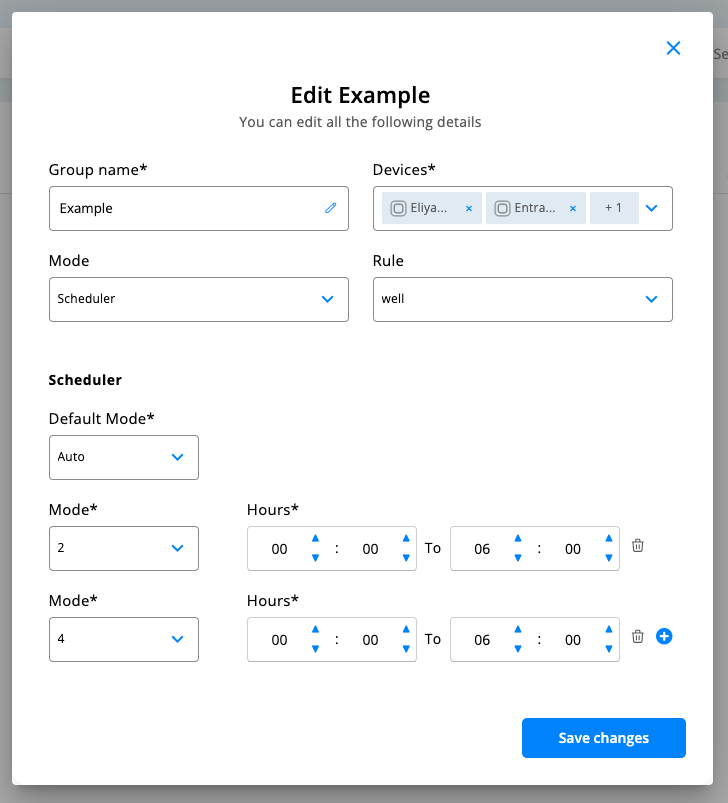
Mode
- Choose the operating mode for all devices in this group
- Options include standard modes or Scheduler mode for automated time-based control
- All devices in the group will operate using the selected mode
Rule
- Assign specific rules that will apply to all devices in the group
- Rules can automate behavior based on various triggers and conditions
- Select from available rules or create custom rule assignments
Scheduled Mode Feature Create automated, time-based control by:
- Adding a new group
- Selecting "Scheduler mode" from the Mode dropdown
- Configuring time-based rules for the group
- All devices in the group will follow the scheduled operations
Group Management Functions Once groups are created, you can:
- Edit group settings and membership
- Apply mode changes to entire groups instantly
- Duplicate successful group configurations
- Remove or reorganize groups as needed
Best Practices for Groups
- Use descriptive names that clearly identify the group's purpose
- Keep group sizes manageable for easier control
- Consider operational schedules when creating groups
- Test group functionality with a few devices before adding many
- Regularly review and update group memberships as your setup changes
Was this article helpful?
That’s Great!
Thank you for your feedback
Sorry! We couldn't be helpful
Thank you for your feedback
Feedback sent
We appreciate your effort and will try to fix the article