The Rules tab is your place to create personalized automation for each group of devices. Set up smart alerts and automatic actions based on air quality parameters to maintain optimal indoor environments. When a rule is triggered, you'll receive an email notification alerting you about it.
WELL Standard
Default rule settings are based on the WELL Building Standard, developed by the International WELL Building Institute (IWBI). WELL is a performance-based system for measuring, certifying, and monitoring building features that impact human health and wellbeing. It focuses on seven core concepts: Air, Water, Nourishment, Light, Fitness, Comfort, and Mind. The standard is backed by medical and scientific research and provides evidence-based guidelines for creating healthier indoor spaces that support human health.
For more information about the WELL Building Standard, visit: https://www.wellcertified.com
Rules Table Columns
- Rule name - Custom name for your automation rule
- Groups - Which device groups the rule applies to
- Date added - When the rule was created
- Last Modified - Most recent update to the rule settings

Creating a New Rule
Click "+ Add New" and follow these steps:
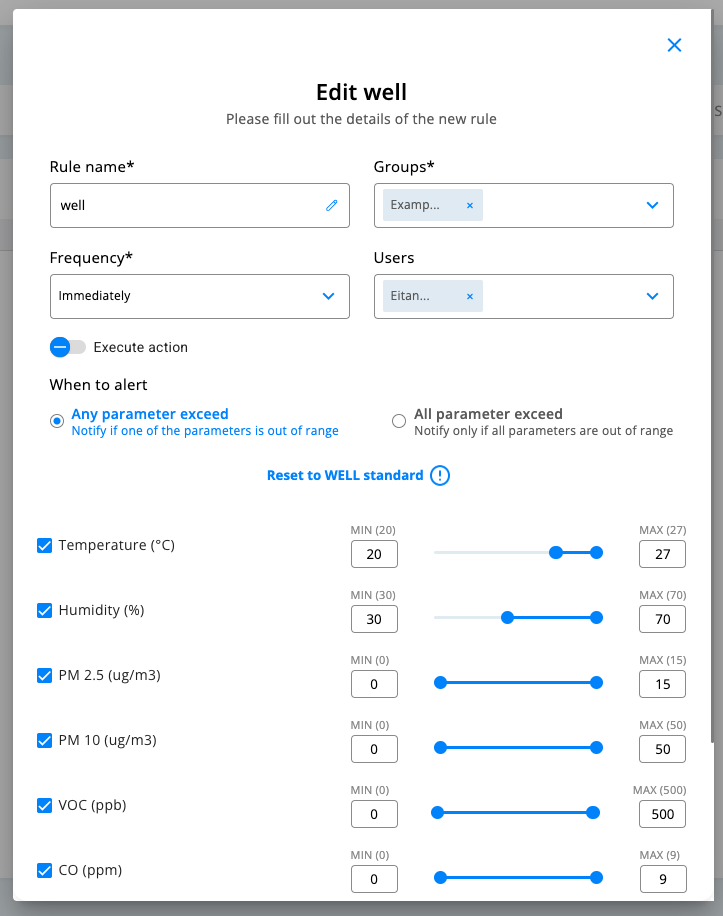
1. Basic Information
- Rule name: Enter a descriptive name for your rule
- Groups: Select which device groups this rule will monitor
- Frequency: Choose how often to check the rule (Immediately, Hourly, Daily)
- Users: Select who should receive notifications when the rule triggers
2. Alert Conditions Choose your alert trigger:
- Any Parameter Exceed: Alert when any single parameter goes out of your defined range
- All Parameter Exceed: Alert only when all selected parameters are out of range simultaneously
3. Parameter Settings Set minimum and maximum acceptable values for:
- Temperature (°C): Indoor temperature range
- Humidity (%): Relative humidity levels
- PM 2.5 (ug/m3): Fine particulate matter
- PM 10 (ug/m3): Coarse particulate matter
- VOC (ppb): Volatile organic compounds
- CO (ppm): Carbon monoxide levels
Use the sliders to set your preferred ranges for each parameter.
4. Execute Actions (Optional) Automate responses when rules trigger:
- Change Mode: Automatically switch device operating modes
- Create Custom Task: Assign specific users to complete tasks when parameters exceed limits
Best Practices
- Use "Any Parameter Exceed" for general air quality monitoring
- Use "All Parameter Exceed" for critical alerts only
- Test rules with small groups before applying to many devices
- Set realistic ranges that match your space's typical conditions
- Review and adjust rules based on actual performance
Tips
- Start with WELL standard settings and adjust based on your needs
- Consider different rules for different spaces (offices vs common areas)
- Set appropriate notification frequency to avoid alert fatigue
- Use execute actions to automate responses and reduce manual intervention
This automation system helps maintain healthy indoor air quality by alerting you to issues and taking corrective actions automatically.
Was this article helpful?
That’s Great!
Thank you for your feedback
Sorry! We couldn't be helpful
Thank you for your feedback
Feedback sent
We appreciate your effort and will try to fix the article