Reset your forgotten password in just a few simple steps using your registered email address.
Step-by-Step Reset Process
Step 1: Request Password Reset
From the login screen, tap "Forgot password"
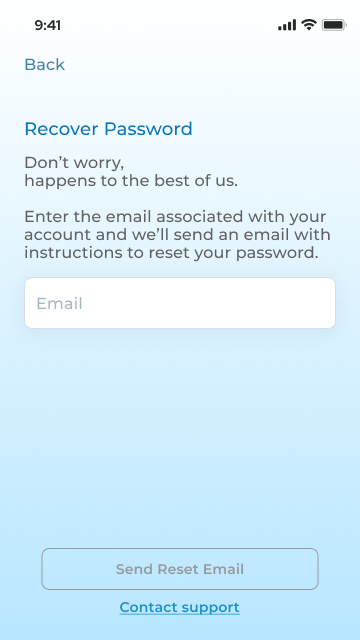
- Enter the email address associated with your account
- Tap "Send Reset Email"
Step 2: Check Your Email
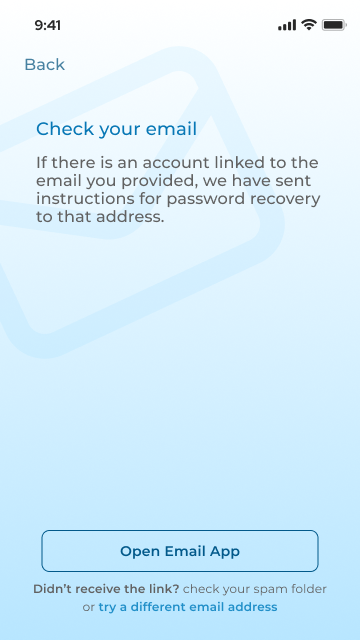
- Open your email inbox
- Look for the Aura Air password reset email
- Check spam folder if you don't see it
- Tap "Open Email App" for quick access
Step 3: Create New Password
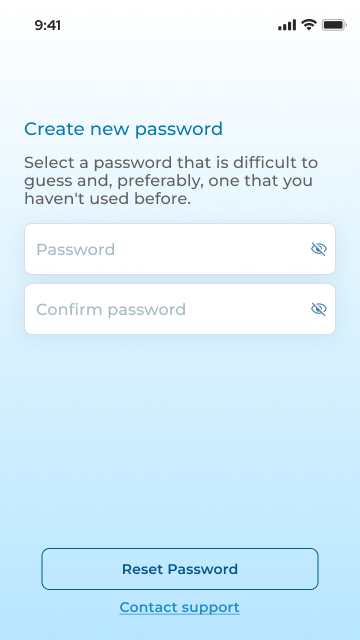
- Follow the link in your email
- Enter your new password
- Confirm the password by retyping it
- Tap "Reset Password"
Password Requirements
- Minimum 8 characters
- Use letters, numbers, and symbols
- Choose something you haven't used before
Need Help?
- No email received? Check spam folder and wait 5-10 minutes
- Still having issues? Use "Contact support" on any reset screen
Was this article helpful?
That’s Great!
Thank you for your feedback
Sorry! We couldn't be helpful
Thank you for your feedback
Feedback sent
We appreciate your effort and will try to fix the article