Sharing & Members
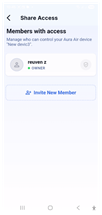
The Share Access screen lets you manage who can view and control your Aura Air device.
You can invite multiple people with different permission levels.
To open it, tap Share Device in the Device Settings menu.
The screen shows two sections:
- Members with access: Displays everyone who currently has access to the device, including yourself as Owner.
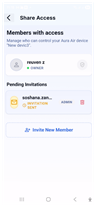
- Pending Invitations: Shows any invitations you have sent that haven't been accepted yet. Each
pending invite shows the invitee's email, their assigned role and a trash icon to cancel the invitation.
Inviting a New Member
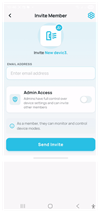
- Tap Invite New Member on the Share Access screen.
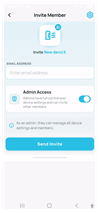
- Enter the invitee's email address in the Email Address field.
- Choose the access level by toggling Admin Access on or off (see Access Levels below).
- Tap Send Invite to send the invitation.
The invitee will appear under Pending Invitations until they accept. Once accepted, they move to the Members with access list and the shared device appears on their Home screen with a "Shared" badge.
? Invitations expire after 7 days. If the invitee does not accept in time, you can send a new invite.
Access Levels
When sending an invite you choose between two permission levels:
Role | What They Can Do | Can Manage Settings & Members? |
Member | Monitor air quality data and control device modes. | No |
Admin | Full control — view data, control modes, change device settings, and invite or remove other members. | Yes |
The Invitation Email
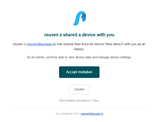
The person you invite receives an email from Aura Smart Air LTD with the subject line "[Your Name] shared a device with you". The email shows:
- The name and email of the person who sent the invite.
- The device name that was shared.
- The role granted (Member or Admin) and what it allows.
- An Accept Invitation button and a Decline button.
- A note that the invitation expires in 7 days.
The invitee must have the Aura Air app installed and an active account to accept the invitation.
Once they tap Accept Invitation, the device appears on their home screen immediately.
To cancel a pending invitation before it is accepted, tap the trash icon next to the invitee's name on the Share Access screen.
Removing a Member
To remove someone's access to your device, go to Share Device and tap the shield icon next to their name in the Members with access list. Confirm the removal when prompted.
The device will disappear from their home screen immediately.
Was this article helpful?
That’s Great!
Thank you for your feedback
Sorry! We couldn't be helpful
Thank you for your feedback
Feedback sent
We appreciate your effort and will try to fix the article