The Home screen gives you a quick overview of all your Aura Air devices. Each device is displayed as a card that shows real-time air quality data and gives you fast access to controls.
Home Screen Views
The Home screen has two display modes that you can switch between at the top of the screen:
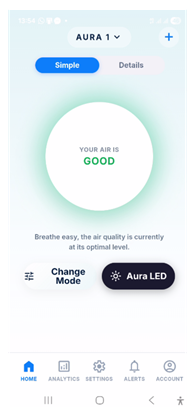
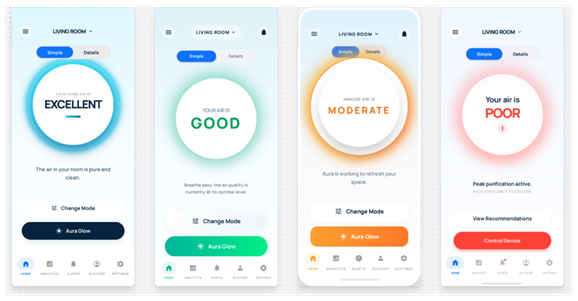
- Simple: A single large circle showing your air quality status with a color-coded glow and a plain-language message. Quick access to Change Mode and Aura LED controls appears below.
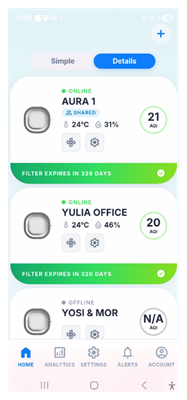
- Details: A scrollable list of all your registered devices, each showing live AQI, temperature, humidity, filter status, and quick-action buttons.
Tap the Simple / Details toggle at the top of the home screen to switch between views at any time.
Device Card Layout
In Details view, each device is shown as a card. Here is what each element on the card means:
- Device Name: The name you gave the device when you set it up. You can also see temperature and humidity displayed live.
- AQI Number: Live air quality score from 0 (Excellent) to 500 (Hazardous). Color-coded: green = good, yellow = moderate, red = poor.
- Settings Gear: Tap to open device settings — change the name, operating mode, sharing options, and more.
- Settings Mode: Tap to open mode settings — change the mode to Auto, quiet, Regular, Maximized or Power off. You can also control the LED lighting at the bottom of the settings.
- Filter Status: A green banner at the bottom of the card shows how many days remain before the filter needs replacement.
Device Status Types
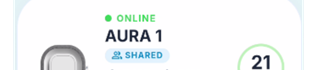
The status indicator next to the device name tells you whether the device is reachable:
Status | Indicator | Description |
Online | Green dot | Device is connected and sending live data. AQI and mode are shown in real time. |
Offline | Gray dot | Device is powered off or has lost its Wi-Fi connection. AQI shows as N/A. |
Disconnected | Red dot | Device cannot be reached. Check that it is powered on and connected to Wi-Fi. |
Shared | Shared badge | This device was shared with you by another user. You can view and control it but may have limited settings access. |


Operating Modes
Tap the fan icon on the device card or use Change Mode on the Simple view to switch between the following modes:
- Auto Mode: The device adjusts fan speed automatically based on real-time air quality readings. Recommended for everyday use.
- Quiet Mode: Runs the fan at the lowest speed for a near-silent operation. Ideal for sleeping.
- Regular Mode: Operates at a standard, balanced fan speed for consistent purification.
- Maximized (Turbo): Runs the fan at full power for the fastest air cleaning. Best for high-pollution events.
- Power Off: Turns the device off. The card will show N/A for AQI.
You can also set a schedule so the device switches modes automatically at specific times — find this in the device Settings.
Aura LED (Lighting Control)
The Aura LED button controls the ambient light ring on your device. Turn it on or off to suit your environment — for example, you may want to turn it off in a bedroom at night.
The LED lighting can also be included in your schedule, so it turns on or off automatically.
Filter Status & Expiry Alerts
Each device card shows a green banner with the number of days until the filter needs replacing.
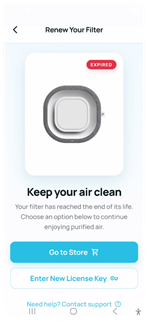
When the filter expires, the banner turns red and shows the following alert at the top of the home screen: "FILTER EXPIRED. REPLACE IMMEDIATELY FOR PEAK EFFICIENCY."
You have two options when you see this alert:
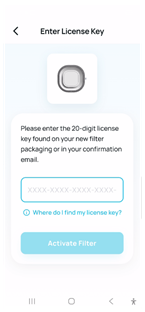
- RENEW: Opens the filter renewal flow so you can order a replacement filter.
- REMIND IN 7 DAYS: Dismisses the alert for 7 days before reminding you again.
Replacing your filter on time keeps your Aura Air device running at peak efficiency.
For best results, replace the filter as soon as you see the expiry alert.
Was this article helpful?
That’s Great!
Thank you for your feedback
Sorry! We couldn't be helpful
Thank you for your feedback
Feedback sent
We appreciate your effort and will try to fix the article