This guide covers your first-time setup of the Aura Air B2B mobile app, from login to pairing your first device.
Complete these steps before beginning daily device management.
Before You Begin
What You'll Need:
- Your web platform login credentials (different from B2C app credentials)
- WiFi network that meets Aura Air requirements
- Physical access to your Aura Air device
- Device serial number and location information
Important: Check WiFi network requirements before starting the pairing process.
Step 1: Download and Login
- Download the Aura Air B2B app from your device's app store
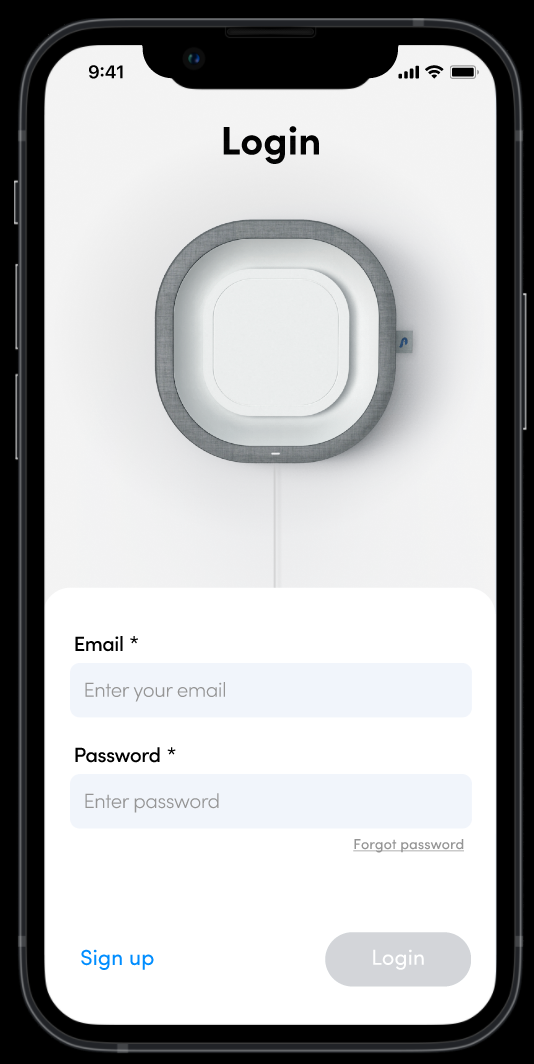
- Login using the same credentials you created for the web platform
- Note: These credentials are different from any B2C app credentials you may have
Step 2: Understanding Your Dashboard
Location Selection
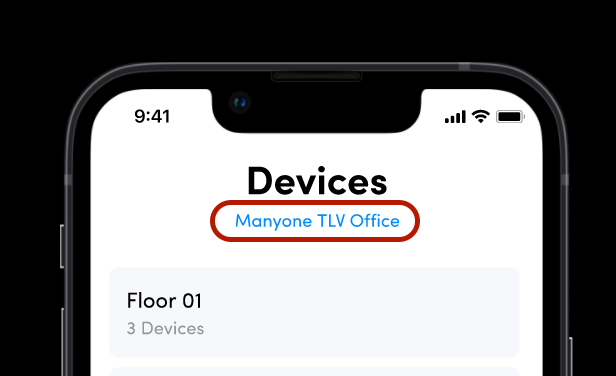
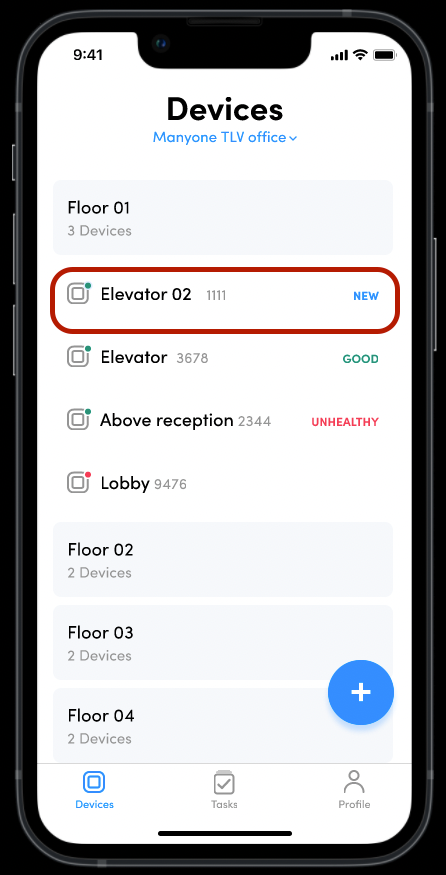
- After login, you'll see the Devices screen with your current location displayed
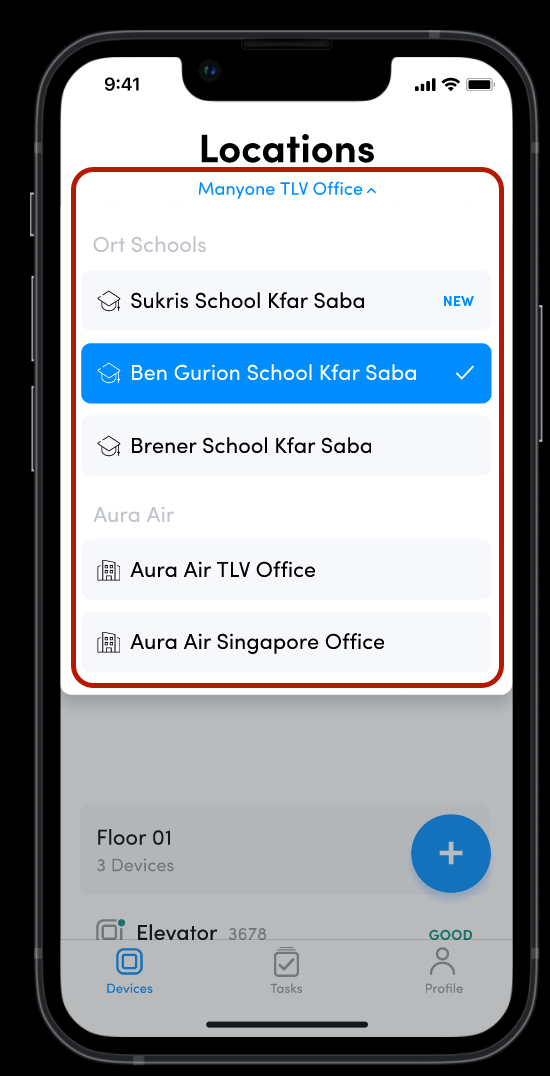
- Click the location name to access a dropdown menu
- Switch between different organizations and locations you have access to
- New locations appear marked with "New" in blue
- Tasks and floor information change based on your selected location
Floor Layout Overview
- Below the location selector, you'll see all floors for that location
- Each floor card displays the number of devices currently paired to that floor
- Click any floor name to view detailed device information
- Troubleshooting: If you don't see a specific device, verify you're viewing the correct location
Step 3: Pairing Your First Device
Starting the Pairing Process
- Locate the '+' button on the floor card where you want to add a device
- Click the '+' button to start the pairing process
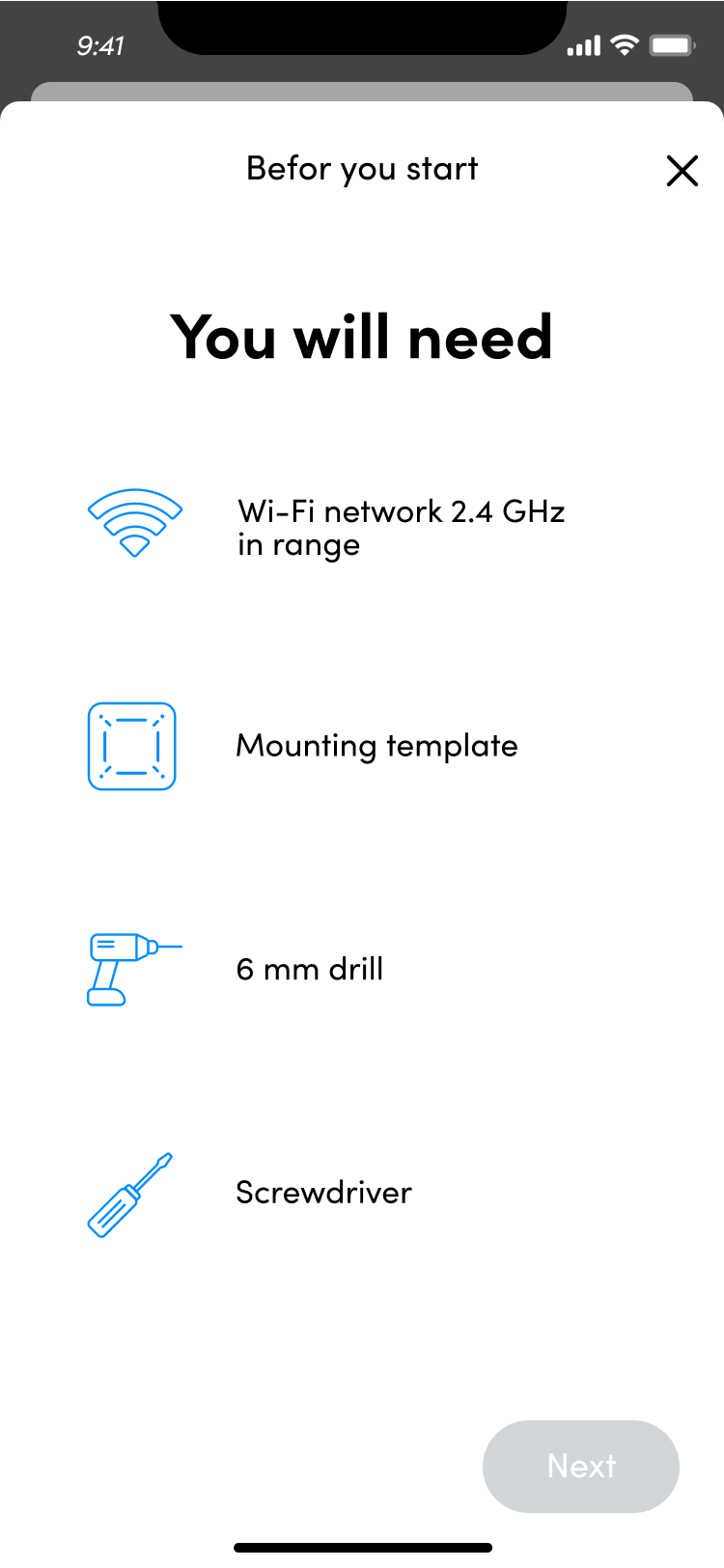
- First-time users: Review the required tools checklist that appears
- Returning users: Access this checklist anytime via the 'i' button at the top of the page
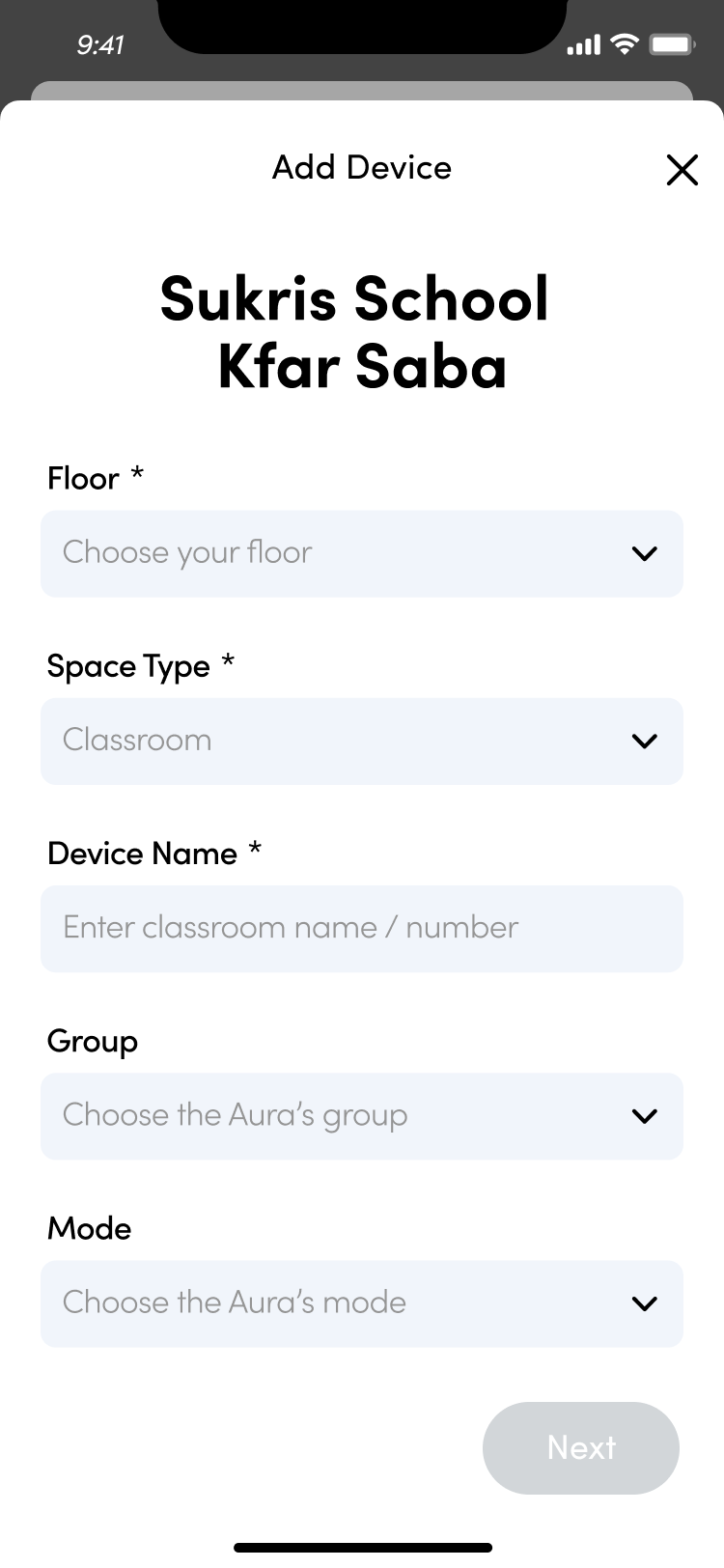
Device Information Setup
-
Complete all required device information fields:
- Device name
- Space Type
- Floor assignment
- All mandatory fields must be filled before proceeding to the next step
- Double-check serial number accuracy for proper device identification
Step 4: WiFi Connection Process
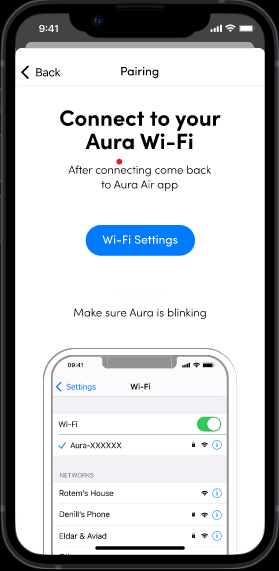
Phase 1: Connect to Aura Device
- Go to your phone's WiFi settings (outside the app)
- Look for and select the Aura network: 'Aura-XXXXXX'
- Wait for connection to establish
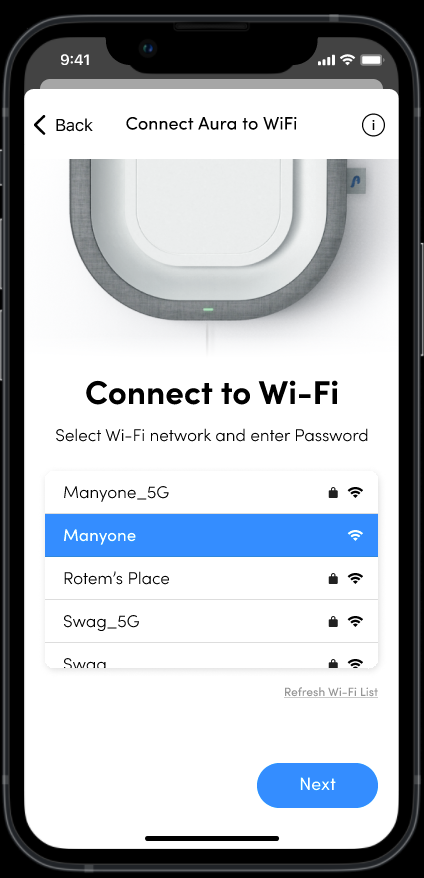
Phase 2: Configure Permanent Network
- Return to the B2B app
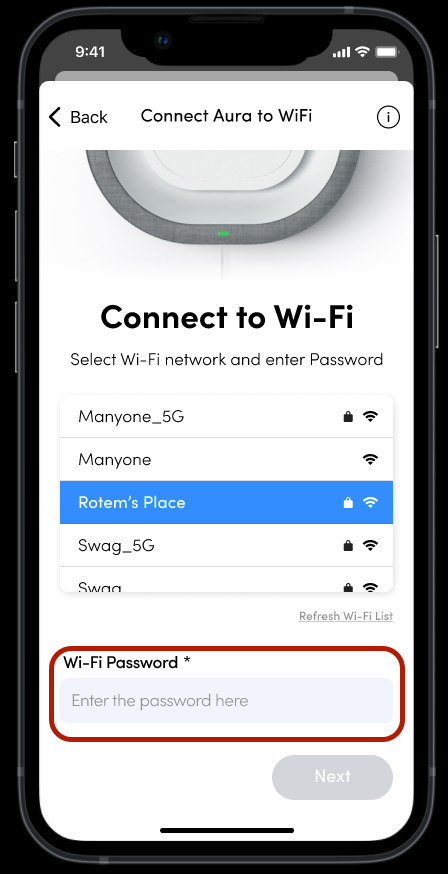
- Select the WiFi network you want your device to use permanently
-
Choose your network type:
- Open Network: No password required
- Password-Encrypted Network: Enter your WiFi password
Completion
- Wait for the pairing process to complete
- Verify the device appears in your floor listing
- Check that WiFi connectivity status shows as connected
Next Steps Once your first device is successfully paired, you can:
- Pair additional devices using the same process
- Begin monitoring air quality data
- Start managing tasks and device settings
For ongoing device management and task workflows, refer to the "B2B Mobile App: Managing Devices & Tasks" guide.
Was this article helpful?
That’s Great!
Thank you for your feedback
Sorry! We couldn't be helpful
Thank you for your feedback
Feedback sent
We appreciate your effort and will try to fix the article