This guide covers daily usage of the B2B mobile app for managing your paired devices, completing assigned tasks, and customizing your profile settings.
Prerequisites
- B2B app installed and logged in
- At least one device successfully paired
- Tasks assigned through the web platform
Device Management
Viewing Device Information
- Navigate to the Devices screen
- Select your location from the dropdown if managing multiple locations
- Click on any floor to view devices on that floor
-
For each device, you can see:
- Device name and serial number
- WiFi connectivity status
- Current air quality index (AQI)
- Device operating mode
Changing Device Modes
- Locate the device you want to adjust
- Select the current mode to open mode options
- Choose from available operating modes
- Changes take effect immediately
Task Management
Accessing Your Tasks
- Navigate to the Tasks page from the main menu
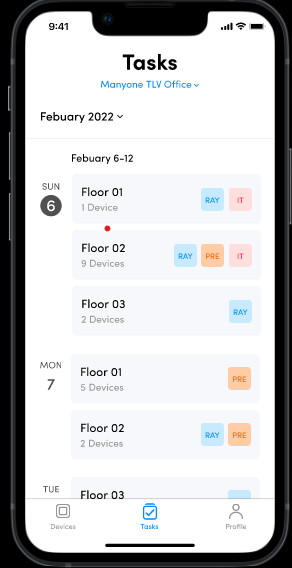
- Tasks are organized by location and displayed under the Tasks headline
- Tasks are further organized by floor for easy navigation
Understanding Task Layout
- Timeline Format: Tasks appear in chronological order
- Overdue Tasks: Previous days' incomplete tasks appear first, highlighted in red
- Current Tasks: Today's scheduled tasks follow
- Future Tasks: Upcoming tasks appear below (scroll down to view)
Completing Tasks
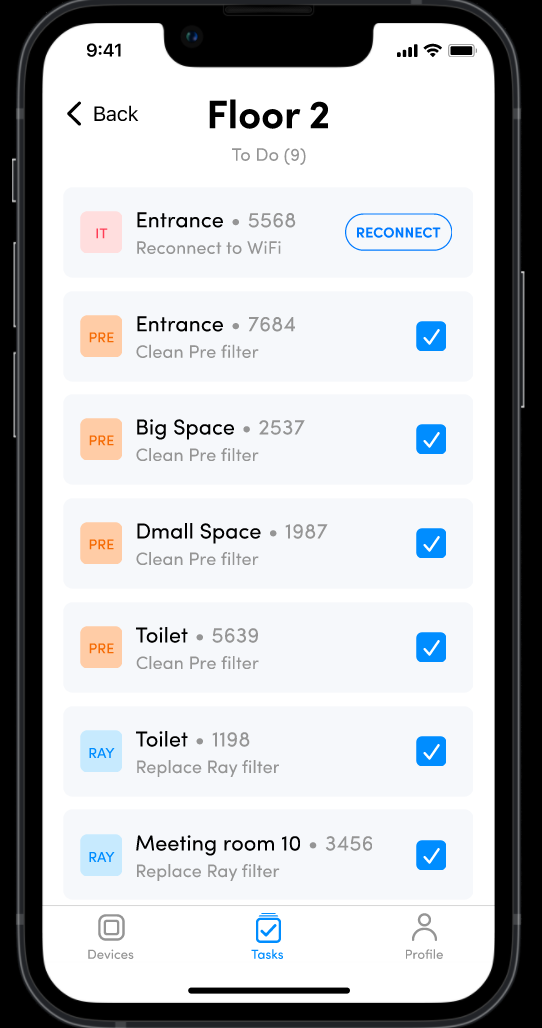
- Select Floor: Click on the floor containing your assigned task
-
View Task Details:See all tasks for that floor including:
- Device name and serial number
- Task type (Pre-Filter cleaning, Ray Filter replacement, equipment purchase, IT support, etc.)
- Due date and priority level
- Complete Task: After finishing the work, check the completion checkbox
- Notification: This automatically notifies the dashboard owner that the task is completed
Profile Customization
Accessing Profile Settings
Navigate to your profile page through the main menu to access customization options.
Available Settings
- Profile Picture: Upload or change your profile image for easy identification
- Language Preference: Select your preferred app language from available options
- Work Week Configuration: Set your working days and hours so tasks display according to your availability
- Support Access: Direct contact link to reach the support team
Best Practices
Daily Workflow
- Check tasks at the start of each day
- Prioritize overdue tasks (highlighted in red)
- Verify you're viewing the correct location before starting work
- Mark tasks complete immediately after finishing
Device Monitoring
- Regularly check WiFi connectivity status for all devices
- Monitor air quality readings to identify potential issues
- Switch device modes based on space usage and air quality needs
Task Management
- Review upcoming tasks to plan your schedule
- Report any issues with task completion through the support feature
- Keep your profile information updated for accurate task assignments
Troubleshooting
Common Issues
- Device Not Visible: Verify you're viewing the correct location and floor
- WiFi Connection Problems: Check device connection status and network stability
- Task Not Appearing: Confirm you're assigned to the task in the web platform
Getting Support Access support directly through your profile page or refer to the web platform knowledge base for additional technical guidance.
Was this article helpful?
That’s Great!
Thank you for your feedback
Sorry! We couldn't be helpful
Thank you for your feedback
Feedback sent
We appreciate your effort and will try to fix the article