This guide covers managing your device and account settings in the Aura Air consumer app, including device configuration, Wi-Fi connectivity, app preferences, notification settings, and account management options.
Accessing Settings
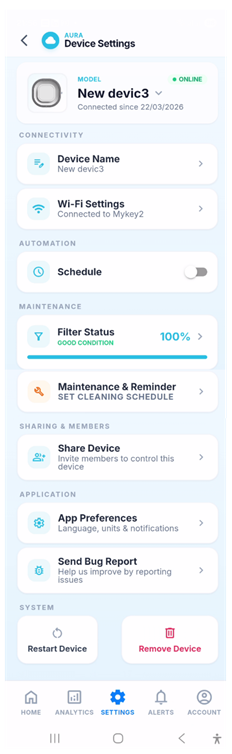
Tap the Settings tab in the bottom navigation bar to open Device Settings. This screen is organized into sections — Connectivity, Automation, Maintenance, Sharing & Members, Application, and System — each covering a different area of your device and app configuration.
Device Settings Overview
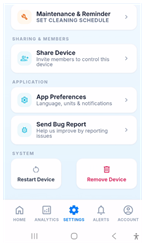
At the top of the Device Settings screen you can see the device model name, its online/offline status, and the date it was first connected. The sections below provide access to:
Option | Description |
Device Name | Change the custom name shown on your device card. |
Wi-Fi Settings | View the current Wi-Fi connection and switch to a different network. |
Schedule | Enable or disable a time-based automation schedule for this device. |
Filter Status | View the current filter health (percentage remaining and condition). |
Maintenance & Reminder | Set a cleaning schedule and configure reminder alerts. |
Share Device | Invite other users to view and control this device. |
App Preferences | Configure language, temperature units, time format, sounds, and notifications. |
Send Bug Report | Submit a problem report to the Aura Air team. |
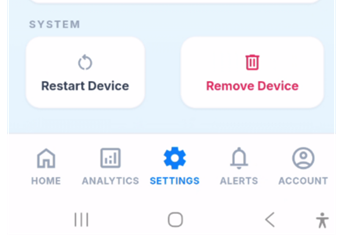
Restart Device | Restart the device remotely without removing it from your account. |
Remove Device | Permanently remove the device from your account (shown in red). |
Connectivity
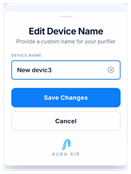
Changing the Device Name
To give your device a custom name that appears on the Home screen:
- Tap Device Name in the Connectivity section.
- The Edit Device Name screen will open.
- Clear the current name and type a new one in the Device Name field.
- Tap Save Changes to apply or Cancel to discard.
Wi-Fi Settings
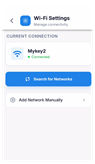
The Wi-Fi Settings screen shows your device's current network connection and allows you to connect it to a different Wi-Fi network.
To change the Wi-Fi network:
- Tap Wi-Fi Settings in the Connectivity section.
- The current connection is shown at the top with a green "Connected" status.
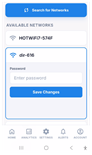
- Tap Search for Networks to scan for available networks nearby.
- Tap the network you want to connect to and enter the password when prompted.
If your network is not listed, tap Add Network Manually and enter the SSID (network name) and password, then tap Save Changes.
Your Aura Air device only supports 2.4 GHz Wi-Fi networks. Make sure you connect to the correct band if your router broadcasts both 2.4 GHz and 5 GHz.
Automation – Schedule
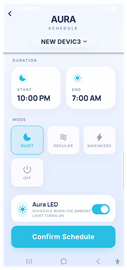
The Schedule lets you enable or disable the automation schedule for this device.
When enabled, the device will automatically switch modes at the times you have configured.
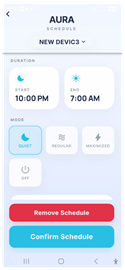
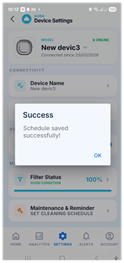
To set up or edit the schedule, tap the Schedule row and configure the start time, end time, and operating mode.
Disable the schedule temporarily using the toggle without losing your saved schedule settings.
Sharing & Members
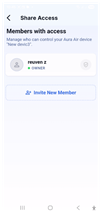
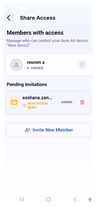
The Share Access screen lets you manage who can view and control your Aura Air device.
You can invite multiple people with different permission levels.
To open it, tap Share Device in the Device Settings menu.
The screen shows two sections:
- Members with access: Displays everyone who currently has access to the device, including yourself as Owner.
- Pending Invitations: Shows any invitations you have sent that haven't been accepted yet. Each
pending invite shows the invitee's email, their assigned role and a trash icon to cancel the invitation.
Inviting a New Member
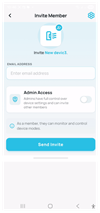
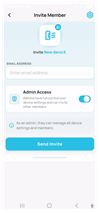
- Tap Invite New Member on the Share Access screen.
- Enter the invitee's email address in the Email Address field.
- Choose the access level by toggling Admin Access on or off (see Access Levels below).
- Tap Send Invite to send the invitation.
The invitee will appear under Pending Invitations until they accept. Once accepted, they move to the Members with access list and the shared device appears on their Home screen with a "Shared" badge.
Invitations expire after 7 days. If the invitee does not accept in time, you can send a new invite.
Access Levels
When sending an invite you choose between two permission levels:
Role | What They Can Do | Can Manage Settings & Members? |
Member | Monitor air quality data and control device modes. | No |
Admin | Full control — view data, control modes, change device settings, and invite or remove other members. | Yes |
The Invitation Email
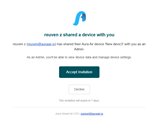
The person you invite receives an email from Aura Smart Air LTD with the subject line "[Your Name] shared a device with you". The email shows:
- The name and email of the person who sent the invite.
- The device name that was shared.
- The role granted (Member or Admin) and what it allows.
- An Accept Invitation button and a Decline button.
- A note that the invitation expires in 7 days.
The invitee must have the Aura Air app installed and an active account to accept the invitation.
Once they tap Accept Invitation, the device appears on their home screen immediately.
To cancel a pending invitation before it is accepted, tap the trash icon next to the invitee's name on the Share Access screen.
Removing a Member
To remove someone's access to your device, go to Share Device and tap the shield icon next to their name in the Members with access list. Confirm the removal when prompted.
The device will disappear from their home screen immediately.
Report an Issue
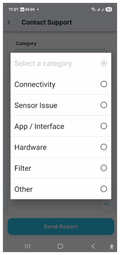
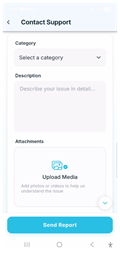
If you encounter an issue with the app or your device, tap Send Bug Report to submit a diagnostic report directly to the Aura Air team.
Include as much detail as possible about what you were doing when the issue occurred. This helps the team investigate and resolve problems faster.
System
Restart Device
Tap Restart Device to remotely reboot your Aura Air unit. This can resolve minor connectivity or performance issues without physically unplugging the device. The device will go offline briefly and reconnect automatically.
Remove Device
Tap Remove Device (shown in red) to permanently delete this device from your account.
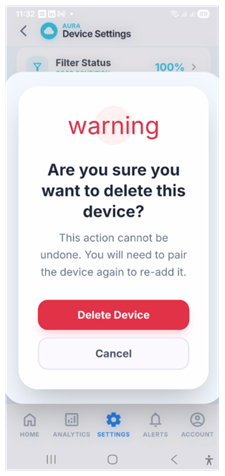
A confirmation warning will appear:
"Are you sure you want to delete this device? This action cannot be undone.
You will need to pair the device again to re-add it."
Tap Delete Device to confirm, or Cancel to go back.
Removing a device is permanent and cannot be undone. All associated data and history for this device will be lost.
If you are having trouble with the device, try Restart Device or contact support before removing it.
Was this article helpful?
That’s Great!
Thank you for your feedback
Sorry! We couldn't be helpful
Thank you for your feedback
Feedback sent
We appreciate your effort and will try to fix the article